Balance Sheet Specification
1. General
The Balance Sheet Specification app extends Business Central functionality by enabling G/L entries to be applied against each other on balance sheet accounts. This feature corresponds to the application of customer and vendor ledger entries, but for general ledger accounts.
The app enables:
- Linking related G/L entries together (e.g., a loan to which repayments are later applied).
- Generating a Balance Sheet Specification report that shows open entries per account with opening balance, period changes, and closing balance.
This is particularly useful for Finnish balance sheet reporting requirements (tase-erittely), where companies must provide detailed breakdowns of balance sheet account balances.
2. Setup
2.1. G/L Account Setup
- Open the Chart of Accounts page and from there the G/L Account Card for each balance sheet account you want to include in the specification.
- On the General tab, enable the Direct Posting toggle.
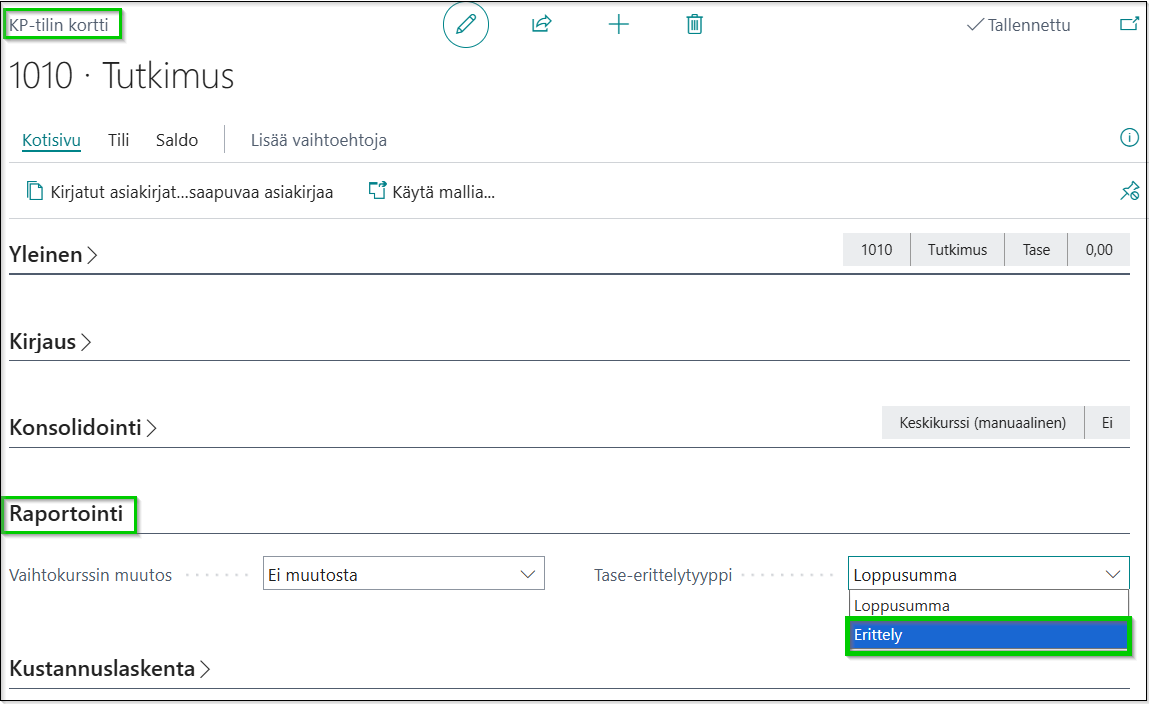
- On the Reporting tab, set the Bal. Sheet Specification Type field to Specification. The options are:
- End-Total – The account is shown on the report with a total balance only, without entry-level detail. This is the default setting.
- Specification – The account participates in entry-level application. Individual entries can be applied to each other, and the report shows open entries with their remaining amounts. This setting can only be used for balance sheet accounts.
2.2. Sales & Receivables Setup
- Open the Sales & Receivables Setup page.
- On the General tab, the last field is No. of the last Assets G/L Account, which determines the position where the Total of Assets Closing Entries row is printed on the Balance Sheet Specification report. If this field is blank, the row is printed after G/L account number 19998, which for most companies is the last asset-side G/L account. The default value is 1989, which in the Cronus company prints the row in the correct position.
2.3. Permission Set
Assign the FMD Balance Sheet Specification permission set to users who need to work with the balance sheet specification features.
3. Usage
3.1. General Information About Applying Entries
Applying entries to original entries is done using the new Applies-to Entry No. field on the entry. When the entry number of the original entry is saved in this field, it means the entry is applied to that original entry.
When entering data, entries can be applied in the following places:
- General journal,
- recurring general journal entries,
- sales invoice lines,
- sales credit memo lines,
- purchase invoice lines, and
- purchase credit memo lines.
By clicking the three dots on the right side of the Applies-to Entry No. field, the Open G/L Entries page opens, showing the open original entries for that account. From there, the user can select which entry the current entry applies to. This selection dialog can only be used for G/L accounts that have been set as Specification type. The application date is also saved along with the application.
3.2. General Journals
Applying entries from general journals is done as follows:
- Open the General Journal.
- Fill in the G/L Account (a Specification-type account) and Amount fields on the journal line.
- Select the Applies-to Entry No. field. By clicking the three dots on the right side of the field, the Open G/L Entries page opens, showing the open original entries for that account. This page opens only for Specification-type balance sheet accounts.

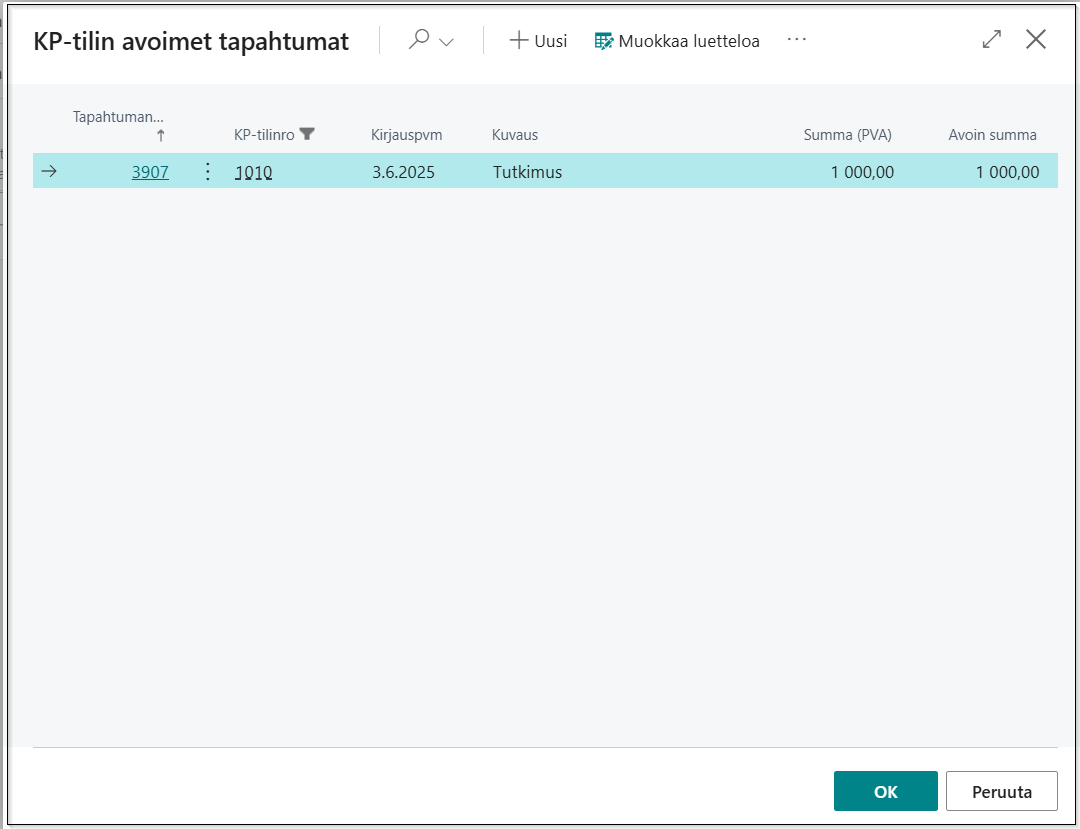
- Select the original entry you want to apply to and press OK.
- Once the original entry is selected, the entry number appears on the journal line.
- The Application Date is automatically set to the journal's posting date.
- Post the journal normally (F9). The system validates that the application amount does not exceed the open amount of the original entry.
When the applied amounts net to zero, the original entry is automatically marked as Closed.
If the application amount is greater than the original amount, Business Central displays an error message and the posting is rejected:
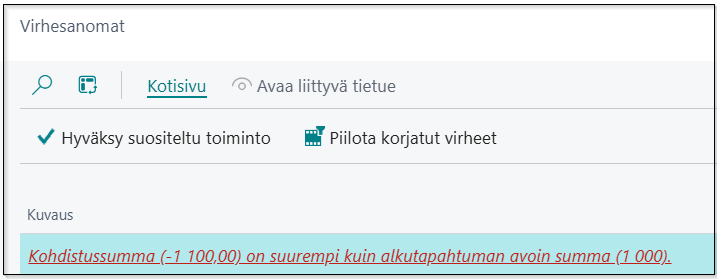
If the difference is caused by, for example, a rounding of a cent, the difference can be posted to a separate income statement G/L account. In the image below, the rounding has been posted to G/L account 6870.

If the application amount is smaller and this is not noticed at the time of posting, the cent difference will remain on the balance sheet specification and can be written off with a memorial voucher.
3.3. Recurring General Journal Entries
The same functionality as in the general journal is also available on the Recurring General Journal page. See image below.

Additionally, a change has been made to recurring general journal entries when the Recurring Method is RF Reversing Fixed or RV Reversing Variable. In those cases, an automatic application is made to the original entry.
The following example illustrates such an event:
- A recurring journal entry is posted on 30.11.2026 with the following settings:
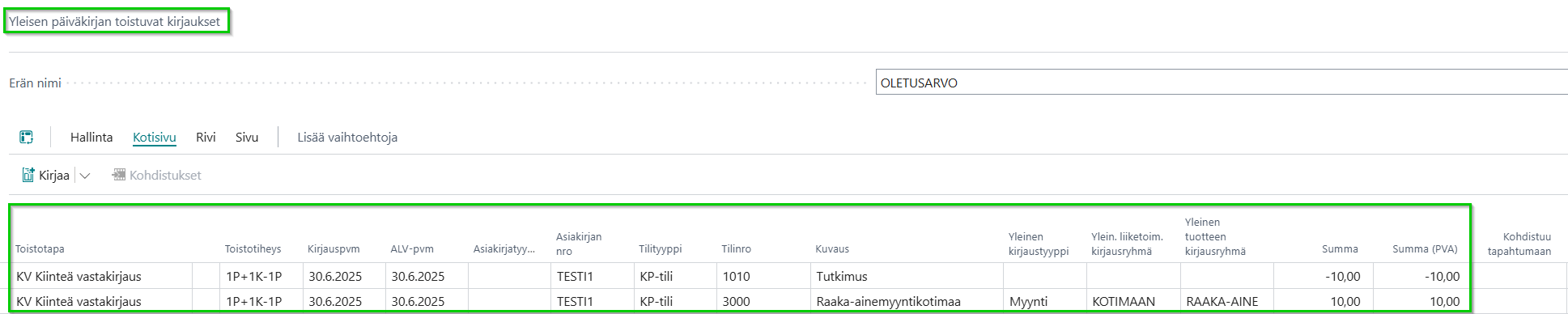
- Review the balance sheet specification for 06/2025 and 07/2025:

Notes from the example above:
- In the June 2025 balance sheet specification, the line posted in step 1 is shown as a specification entry.
- In the July 2025 balance sheet specification, that line has been removed and applied.
-
The closing balance of the G/L account changes accordingly: June 990.00 EUR and July 990.00 EUR + 10.00 EUR = 1,000.00 EUR.
-
The posted entries can also be seen in the G/L Entries.
The entry posted on 1.7.2025 has been applied to the corresponding entry no. 3909 and the original entry has been closed.

The following assumptions have been made in the automatic application of entries:
- The G/L account number of the original and applying entry must be the same, and the number must be in the range 1000–2999 (balance sheet account), and
- The posting date of the original entry is one day earlier than the reversing entry (e.g., 30.11.2026 vs 1.12.2026), and
- The amount of the original entry has the opposite sign to the reversing entry (e.g., 40 EUR vs -40 EUR), and
- The G/L account of the original entry is the same as the reversing entry (e.g., 1010), and
- The Description field of the original entry is the same as the reversing entry.
- The system searches up to 80 earlier entries for a matching entry.
3.4. Sales Invoices
Applications can be made on sales lines for G/L Account type lines where the G/L account is a balance sheet account and the balance sheet specification type is Specification.
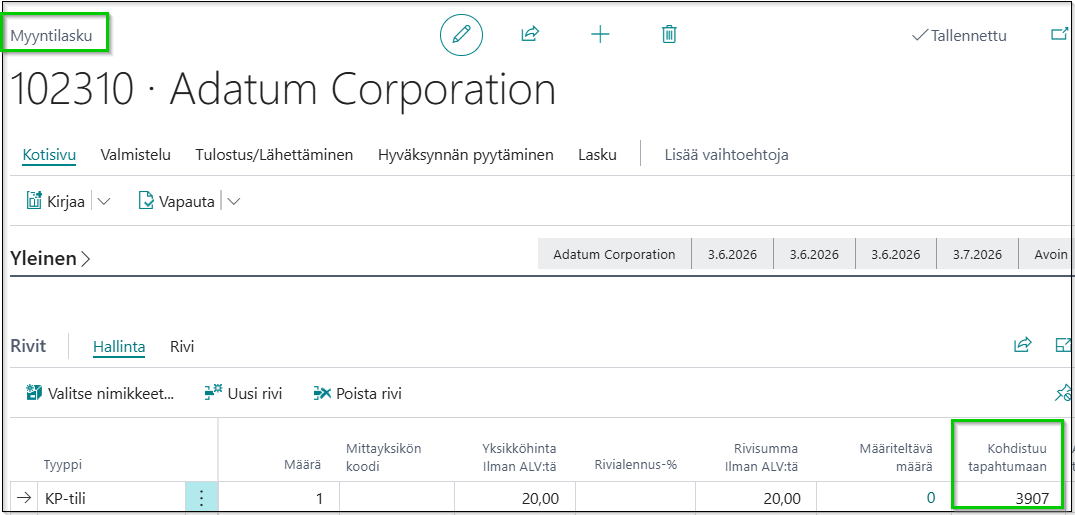
The number can be entered manually in the Applies-to Entry No. field, or the original entry can be selected from the lookup.
3.5. Sales Credit Memos
Applications can also be entered on sales credit memos.
3.6. Purchase Invoices
On the purchase side, the functionality is the same as on the sales side.
3.7. Posting and Validations
Already when entering the application, a check is made that the application has the same G/L account number as the entry being applied to. It is also checked that the original entry being applied to is open. It is also verified that the G/L account is a balance-sheet type account with a balance sheet specification type of Specification. When the journal entry/sales line/purchase line is posted, it is verified that:
- The G/L account number of the original entry is the same as the entry being posted
- The application amount must not be greater than the amount of the original entry
If the application is the same size (with opposite sign) as the open amount of the original entry (the original entry amount minus the amounts already applied to it), the original entry is closed. On the G/L Entries page, the Closed field is then checked.
4. Applying and Unapplying Posted Entries
It is also possible to apply and unapply entries after posting. For this purpose, there are dedicated functions that are launched from the G/L Entries page.
4.1. Applying Posted Entries
- In this function, you start from the original entry and select which entries are applied to the selected original entry.

-
When an entry (= line) is selected and the Apply Entries function is run (Actions --> Functions --> Apply Entries), a page opens showing all entries for that G/L account that:
-
are applied to that entry (these have the Apply field selected, see image below, green box), and
- are not applied to any entry (these do not have the Apply field selected, see image below, orange box)
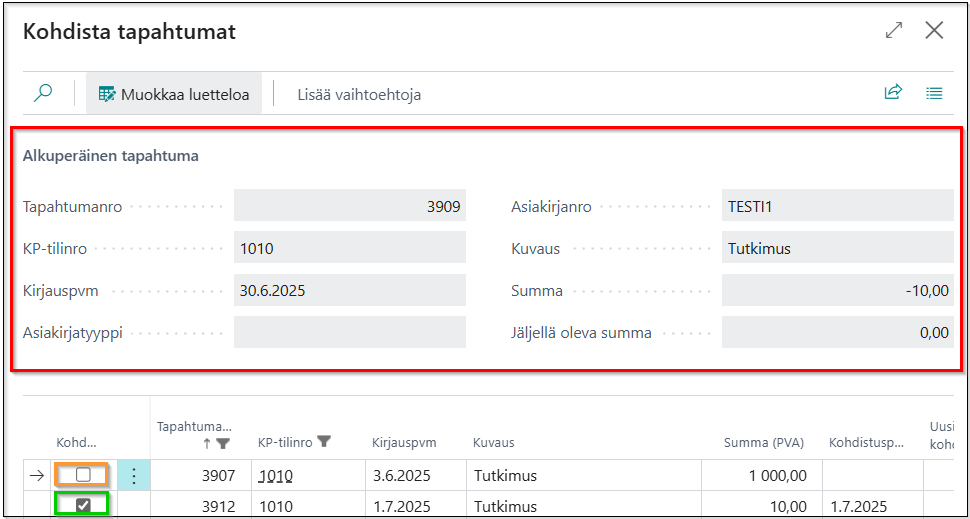
The original entry details are shown at the top (see image above, red box), with a list of potentially applicable entries below.
-
From this view, you can select which entries you want to apply to the original entry, and you can also remove existing applications.
The Remaining Amount field at the top of the page changes as applications are modified.
If the Remaining Amount field is 0, the original entry is closed (and also removed from the balance sheet specification).
If the Remaining Amount field is greater than 0, the original entry is opened or remains open.
-
Press the Close button in the bottom right corner to confirm the re-application.
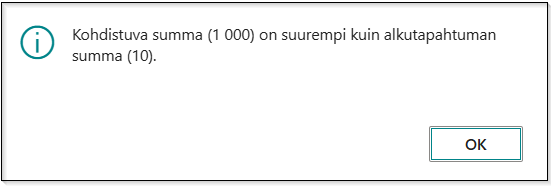
When leaving the screen, a check is made that the total amount applied to the entry does not exceed the amount of the original entry. If this occurs, BC notifies and returns to the page, e.g.:
Applying Posted Entries After Posting with a Different Date
It is also possible to apply entries with a different date than the default posting date. This is done by entering a new desired application date in the New Application Date field on the Apply Entries page (step 2 above) before checking the Apply field on the relevant line. See image below.
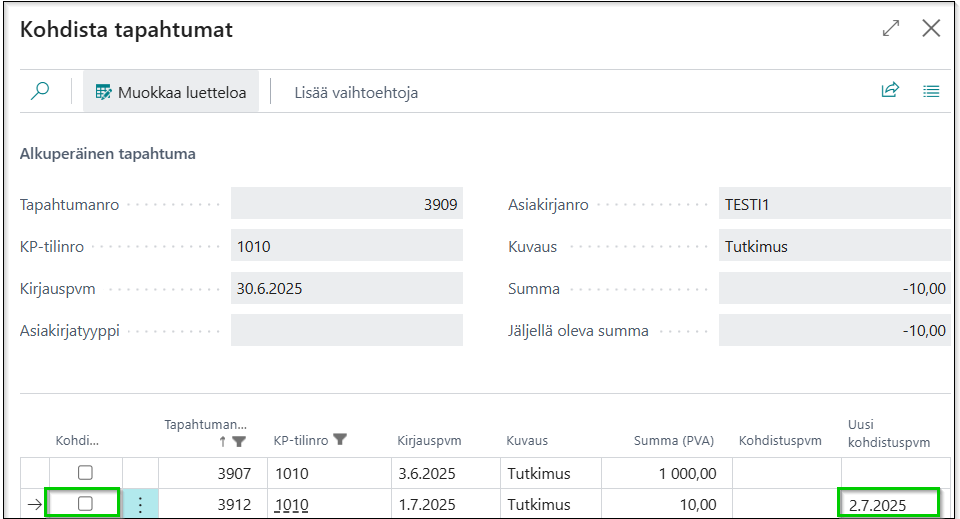
When the Apply checkbox is then checked, the New Application Date field value moves to the Application Date field:

4.2. Unapplying Entries

- Open the G/L Entries page.
- Select the entry whose application you want to unapply and which is applied to an original entry.
- Choose Actions --> Functions --> Unapply Entry.
- Confirm the unapplication. The Applies-to Entry No. field of the entry is cleared, and if the balance of the original entry is no longer zero, it is reopened.
5. Running the Balance Sheet Specification Report
The Balance Sheet Specification report prints the balances of balance sheet accounts at a selected point in time. For accounts with balance sheet specification type End-Total, the ending totals are shown (default). If the specification type is Specification, the accounts also show original entries and changes.
- Search for and open the Balance Sheet Specification report.
- Set the Starting Date and Ending Date for the reporting period.
- Optionally filter on specific G/L Account numbers.
- Run the report.
The report shows each Specification-type account with:
- Start Balance – The net open amount as of the starting date
- Change – Applications made during the reporting period
- End Balance – The remaining open amount as of the ending date
Accounts where the ending balance is zero (fully applied) are excluded from the report output. End-Total accounts are shown with their total balance only.